Get Started
  dr.fone-Transfer (iOS Devices)
 Home - 1-Click File Transfer
- 1-Click Rebuild iTunes Library
- 1-Click Backup Photos to PC/Mac
- 1-Click Transfer iTunes Media to Device
- 1-Click Phone to Phone Transfer
 Transfer & Manage Music
- Transfer Music from Computer to iPhone/iPad/iPod
- Transfer Music from iPhone/iPad/iPod to Computer
- Transfer Music from iPhone/iPad/iPod to iTunes Library
- Transfer Music from iTunes Library to iPhone/iPad/iPod
- Transfer Music Between iDevices and Android Devices
- Manage Music Playlists
- Find and Remove Duplicate Music Files
- Fix Music ID3 Tags for iPhone/iPad/iPod touch
- Delete Music on iPhone/iPad/iPod
 Transfer & Manage Videos
- Transfer Videos from Computer to iPhone/iPad/iPod
- Transfer Videos from iPhone/iPad/iPod to Computer
- Transfer Videos from iPhone/iPad/iPod to iTunes Library
- Transfer Videos from iTunes Library to iPhone/iPad/iPod
- Transfer Videos Between iPhone/iPad/iPod/Android Devices
- Delete Videos on iPhone/iPad/iPod
 Transfer & Manage Photos
- Introduction to Photos
- Transfer Photos from Computer to iPhone/iPad/iPod touch
- Transfer Photos from iPhone/iPad/iPod touch to Computer
- Transfer Photos Between iPhone/iPad/iPod/Android Devices
- Delete Photos on iPhone/iPad/iPod touch
- Manage Photo Albums in Photo Library
- Convert Photos/Video on iPhone/iPad/iPod touch to GIF
 Transfer & Manage Information (Only for Windows Version)
- Transfer Contacts from Computer to iPhone/iPad/iPod touch
- Backup Contacts from iPhone/iPad/iPod touch to Computer
- Transfer Contacts between iOS and Android Devices
- Manage Contacts on iPhone/iPad/iPod touch
- Export SMS from iPhone/iPad/iPod touch to Computer
 Manage Apps
- Install Apps from Computer to iOS Devices in Batch
- Uninstall Apps on iOS Devices with One Click
- Export Apps from iOS Devices to Computer for Backup
 Explorer (Only for Windows Version)
 Toolbox
- Rebuild iTunes Library
- Transfer iTunes to Device
- Phone Transfer
- GIF Maker
- Fix iOS/iPod (Only for Mac Version)
 Tips for dr.fone-Transfer for iOS
Transfer Contacts from Computer to iPhone/iPad/iPod touch
If you have a copy of contacts on your computer for backup, dr.fone-Transfer will enable you to import the contacts from your computer to your iPhone/iPad/iPod easily.
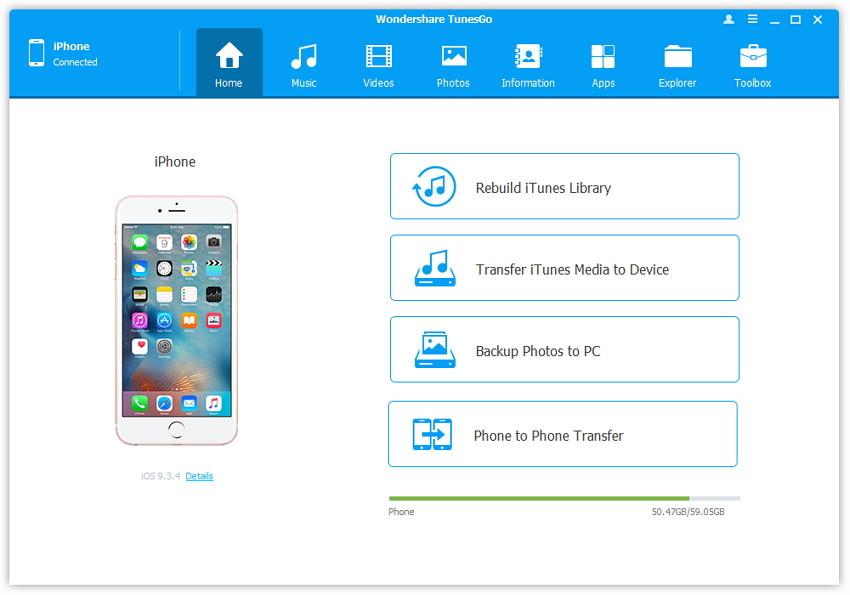
Step 1. Launch dr.fone-Transfer and connect your iPhone/iPad/iPod touch with the computer.
Step 2. Import contacts from computer to iPhone/iPad/iPod touch.
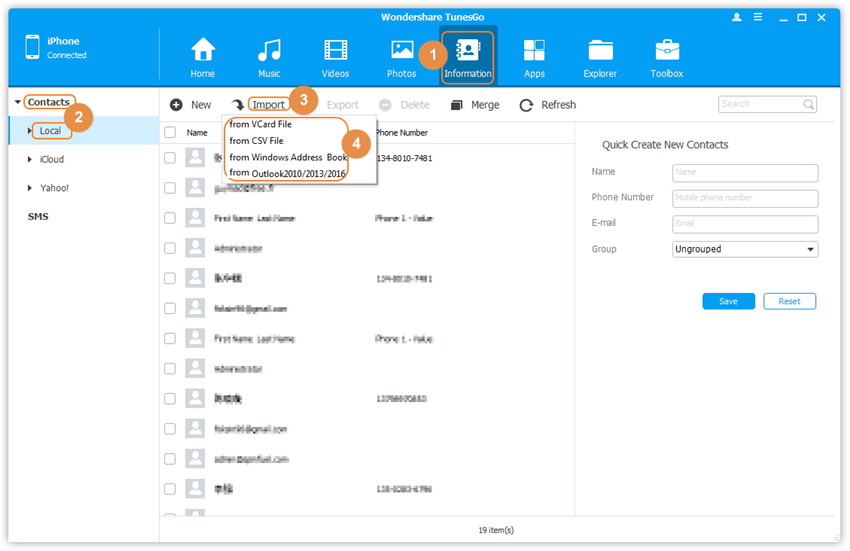
a. Click Information at the top of the the main interface, you're expected to enter Contacts > Local by default; if not, click Contacts > Local respectively. Please note it will take some time to load all your contacts. After that, click Import from the top menu and select one file type you want to import from the drop down list: from Vcard File, from CSV File, from Windows Address Book, from Outlook 2010/2013/2016. Here we choose from CSV File for example.
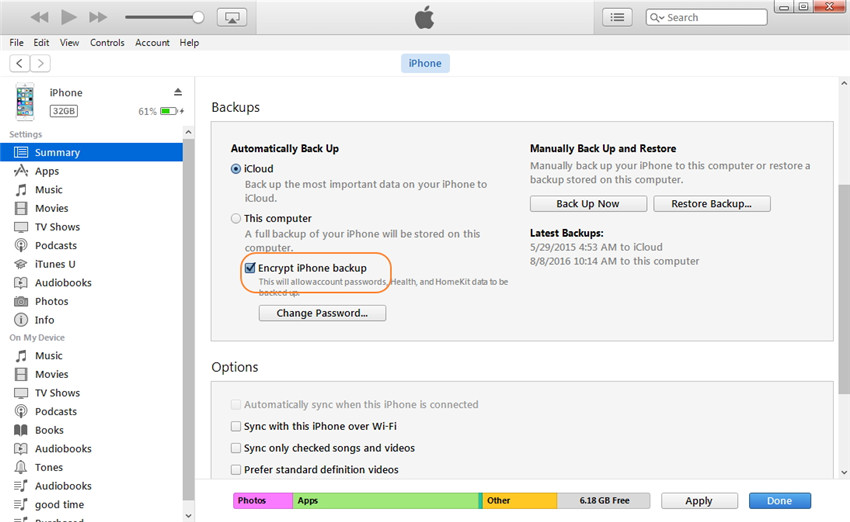
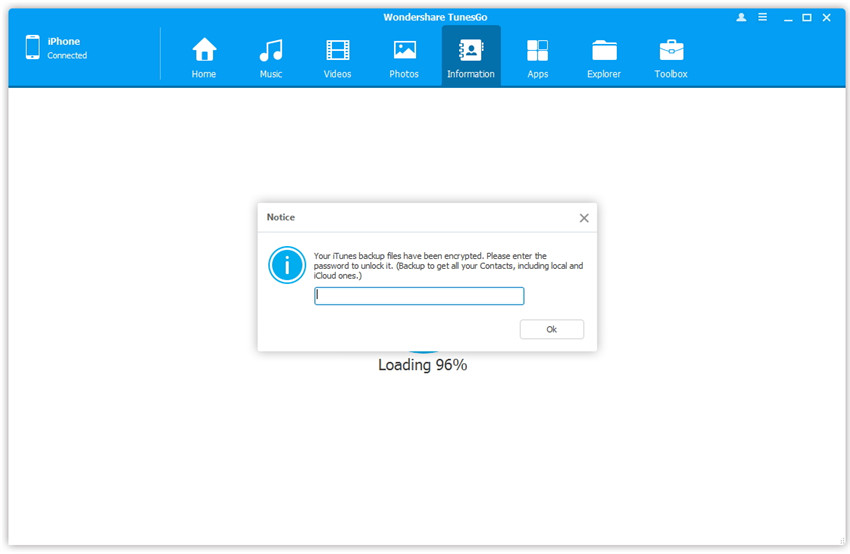
Warning: If you have set an iTunes backup password with the iDevice, namely, check the option Encrypt iPhone backup in iTunes with the iDevice connected. When you click Information on dr.fone-Transfer, a prompt window will pop up, then you need to input the backup password firstly as dr.fone-Transfer has to read your contact information from the iTunes backup copy. Or else dr.fone-Transfer will fail to load your contacts.
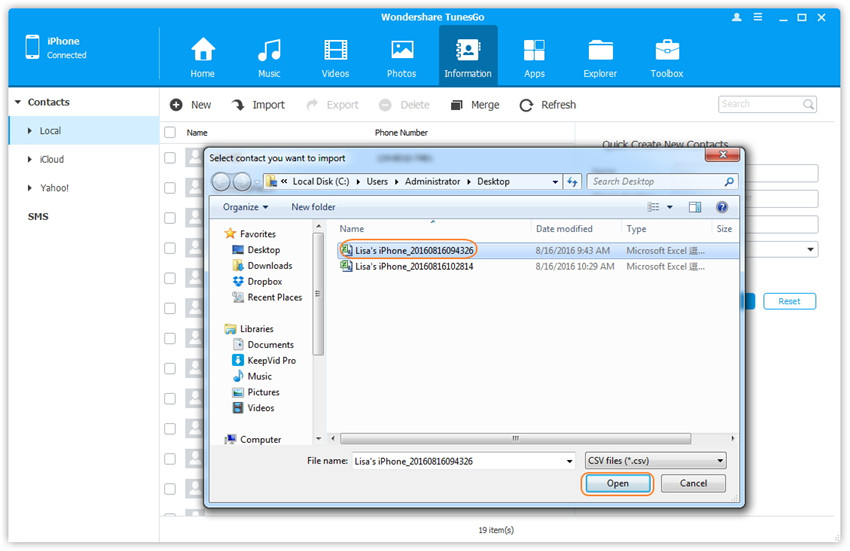
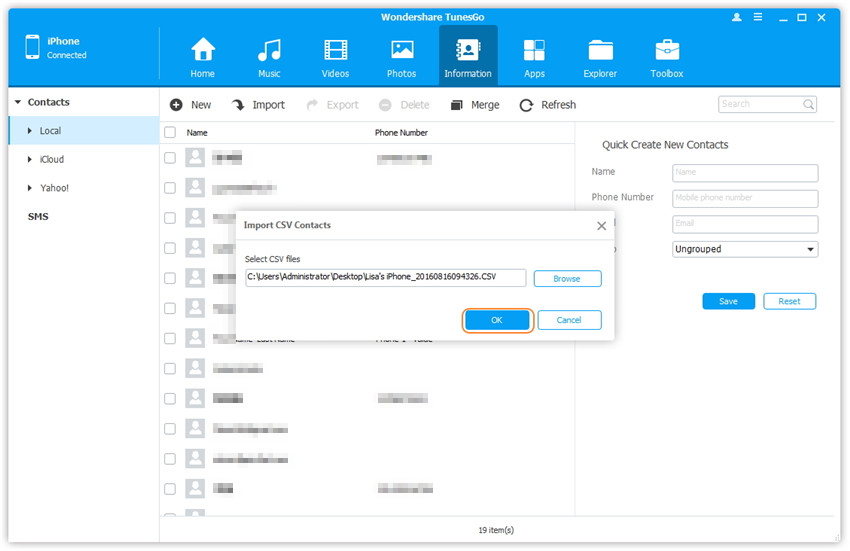
b. A new window will pop up, click Browse to find and select the import file on your computer, and click Open to load the file, then click OK to start importing.
Note: If you can't find the newly-imported contacts, please click Refresh button, then you will see them easily.